Perl LSP Configuration
The details below describe how to install and configure the Perl language server found
here.
Installing the Language Server
A pre-built release of this language server can be downloaded from
here. In this case the
perllsp-0.17.0-x86_64-pc-windows-msvc.zip release was used.
Download the release zip file and complete the install by extracting the contents to a suitable installation folder, similar to the one shown below:
 Directory of D:\Utilities\perllsp

13/07/2026  09:04 PM    <DIR>          .
22/07/2026  01:56 PM    <DIR>          ..
29/06/2026  07:10 AM            11,352 LICENSE-APACHE
29/06/2026  07:10 AM             1,078 LICENSE-MIT
29/06/2026  07:10 AM         5,375,488 perl-dap.exe
29/06/2026  07:10 AM        16,027,136 perllsp.exe
29/06/2026  07:10 AM             8,840 README.md
29/06/2026  07:10 AM               157 SHA256SUMS.txt
NOTE: To find this zip file use the Assets link found at the bottom of that releases page.
The installation folder shown above will need to be added to the system PATH meaning this folder will need to be added to that environment variable.
D:\Utilities\perllsp
Details on how to set the PATH can be found here.
With the software installed and the path updated, test the installation by running perllsp --health at the command line prompt, which should result in the following output:
ok 0.17.0
Configuration
Start Zeus and use the
Options, Document Types menu to edit the
Perl Document Type and in the
Language Server panel apply the following configuration settings:
Program Type: Executable
     Program: perllsp.exe
   Directory: $wdd
The $wdd value used for the directory is a Zeus tag that will evaluate to the workspace drive and directory. This means the language server will start in that workspace folder if a workspace is open.
Using the Language Server
To start using the language server create a simple test.pm Perl file as shown below:
#!/usr/bin/usr/perl
use strict;
use warnings;

print "Hello, World!\n";
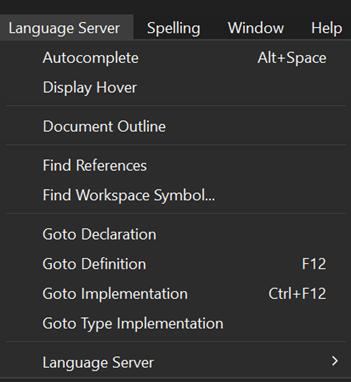
The Language Server, Autocomplete menu can be used to fire of the autocomplete as shown below:
NOTE: As that menu indicates, the Alt+Space keyboard shortcut can also be used to activate the autocomplete.
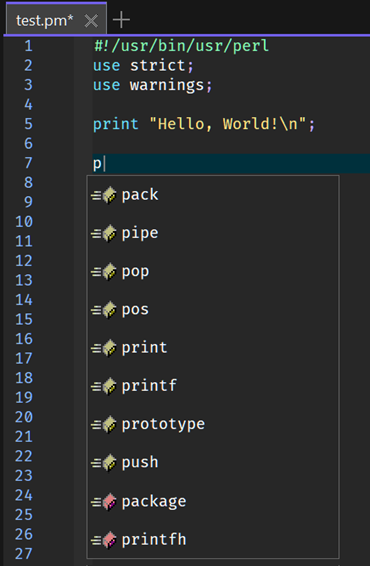
Using those menu/keyboard options fire off an autocomplete request as shown below:
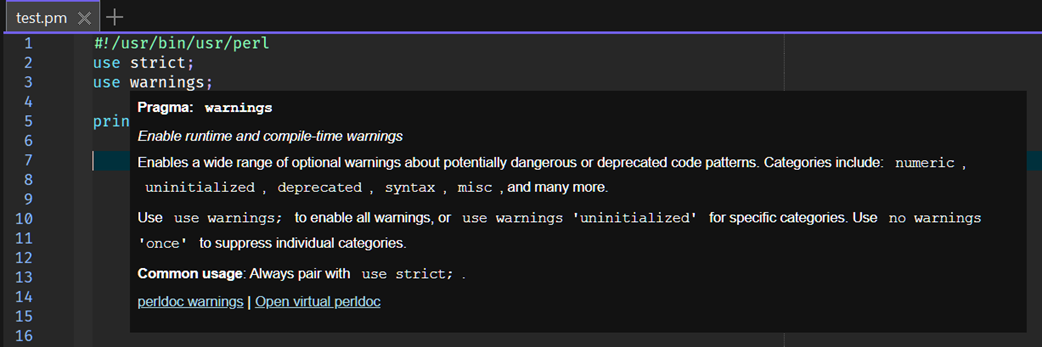
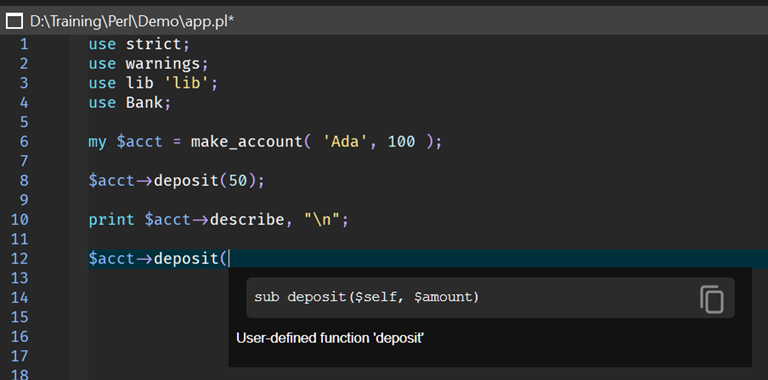
In addition to code completion, code navigation, function signatures, documentation hover is also available.
Using a Workspace
It is also possible to use the Zeus Workspace feature to better manage the language server, via the Zeus Workspace menu.
By using a workspace the $wdd tag value will evaluate to the root directory used by the language server, which means the language server automatically locates any libraries found in that root folder and these will then participate in the autocompletion, documentation tooltips and code navigation.