C# Roslyn LSP Configuration
The details below describe how to install and configure roslyn-language-server found
here.
Installing the Language Server
To install the language server run the following command:
roslyn-language-server --stdio --autoLoadProjects
Configuration
Start Zeus and use the
Options, Document Types menu to edit the
C# Document Type and in the
Language Server panel apply the following configuration settings:
Program Type: Batch
     Program: roslyn-language-server.cmd
   Directory: $wdd
   Arguments: --stdio
              --autoLoadProjects
The $wdd value used for the directory is a Zeus tag that will evaluate to the workspace drive and directory. This means the language server will start in that workspace folder if a workspace is open.
Use the Options, Document Types menu and make the exact same configuration changes to the Language Server panel of the Razor Document Type.
Using the Language Server
To demonstrate the use of the language server a test project was created using the following command line:
dotnet new blazor -o c:\Projects\BlazorTest
Using the Workspace, Import menu, that project can be imported into Zeus as shown below:
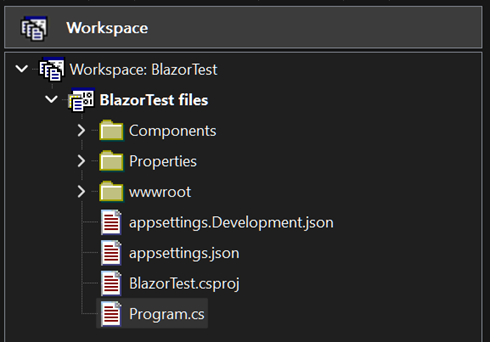
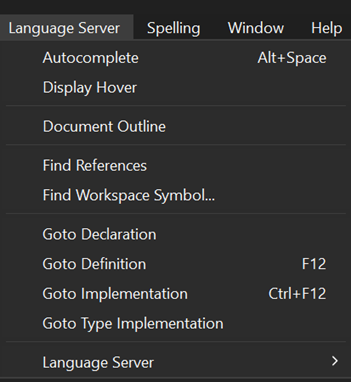
The Language Server, Autocomplete menu can be used to fire of the autocomplete as shown below:
NOTE: As that menu indicates, the Alt+Space keyboard shortcut can also be used to activate the autocomplete.
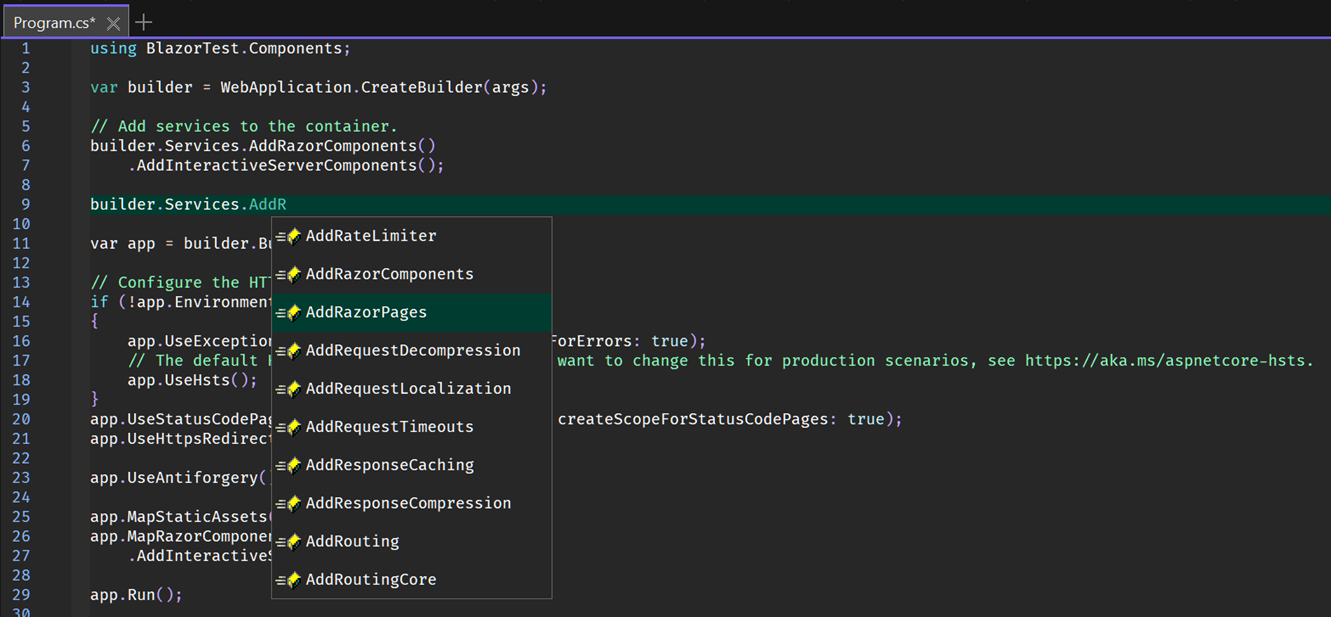
Open the Program.cs file and use those menu/keyboard options to fire off an autocomplete request as shown below:
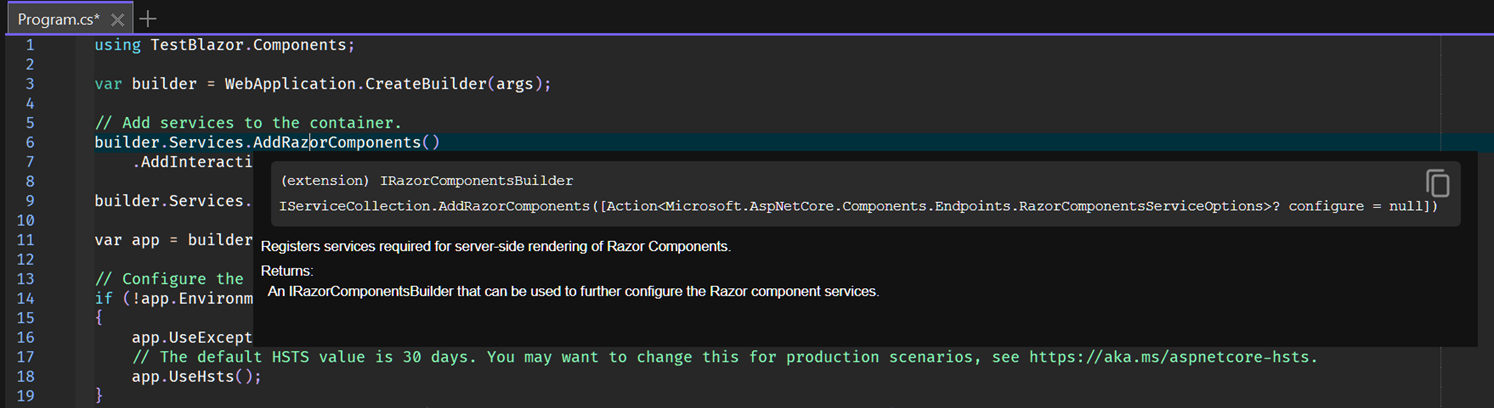
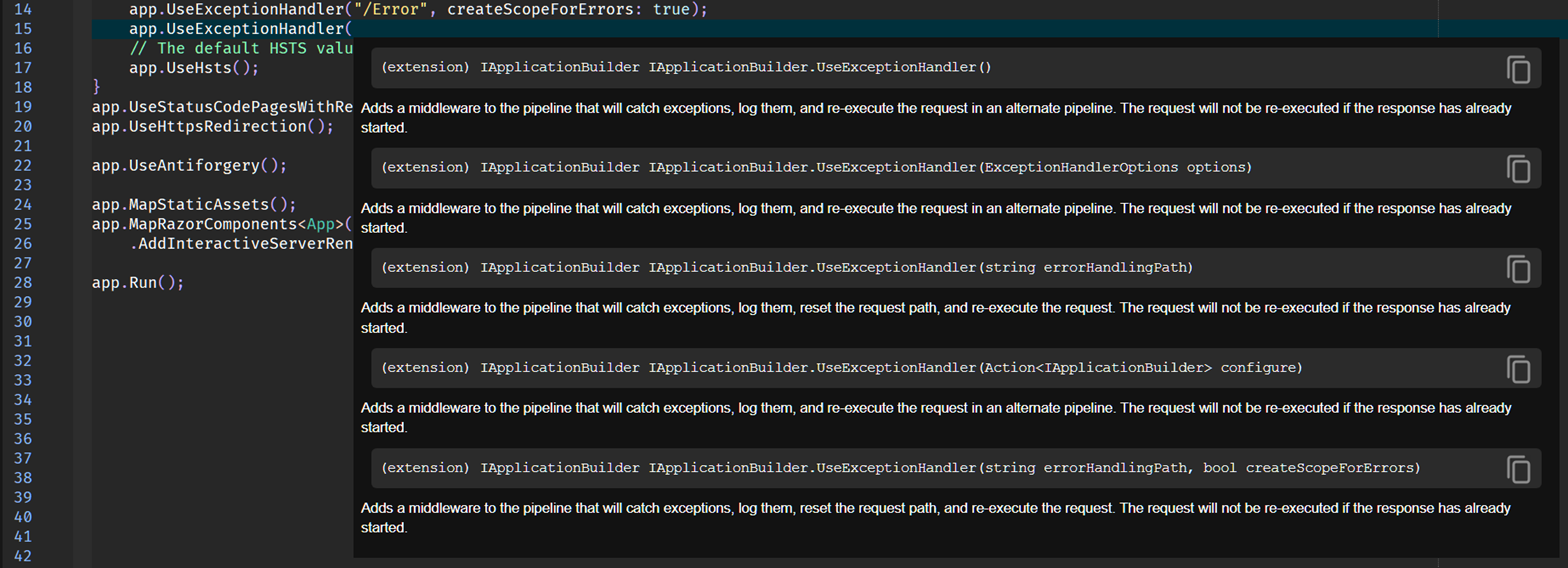
In addition to code completion, code navigation, function signatures, documentation hover is also available.
Here is an example of the documentation hover feature:
Here is an example of the function signature feature:
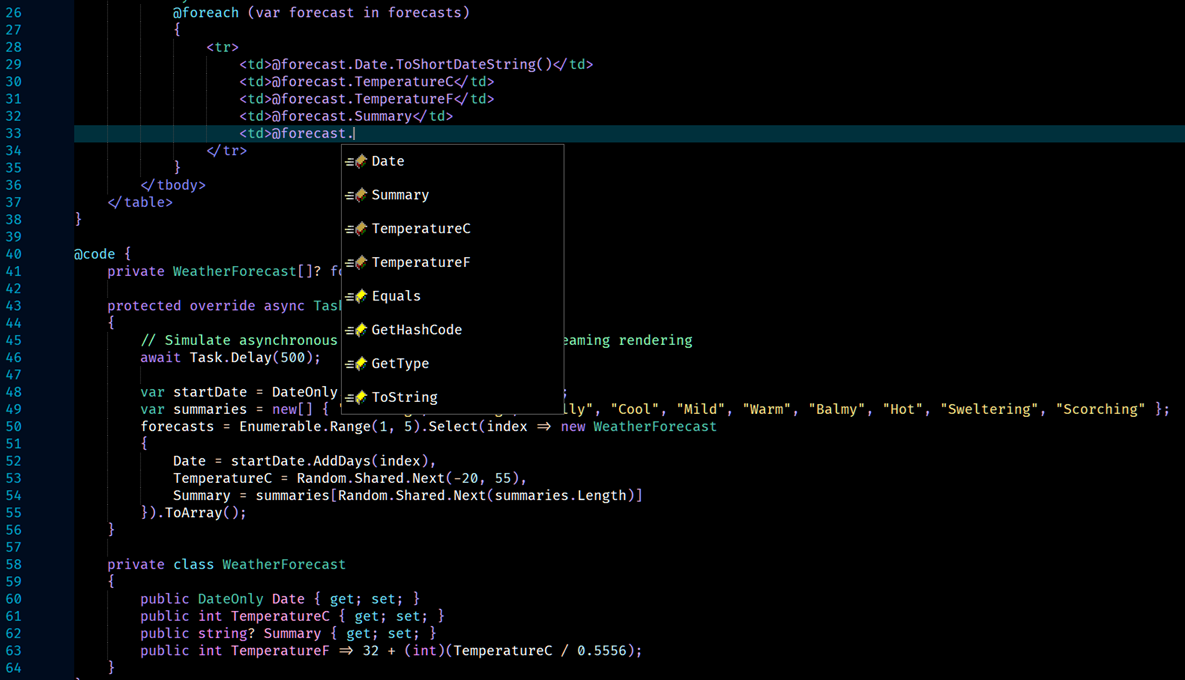
The language server features will also work for the code found inside Razor pages: