C# LSP Configuration
The details below describe how to install and configure the csharp-language-server found
here.
Installing the Language Server
To install the language server run the following command:
dotnet tool install --global csharp-ls
Run this command to test that installation:
csharp-ls --version
This command should produce output similar to the following:
csharp-ls, 0.28.0 (Klebiskis)+72671fc7fa810c158864e72485db68e8b9b25c3d
Configuration
Start Zeus and use the
Options, Document Types menu to edit the
C# Document Type and in the
Language Server panel apply the following configuration settings:
Program Type: Executable
     Program: csharp-ls.exe
   Directory: $wdd
The $wdd value used for the directory is a Zeus tag that will evaluate to the workspace drive and directory. This means the language server will start in that workspace folder if a workspace is open.
Using the Language Server
To demonstrate the use of the language server a test project was created using the following command line:
dotnet new blazor -o c:\Projects\BlazorTest
Using the Workspace, Import menu, that project can be imported into Zeus as shown below:
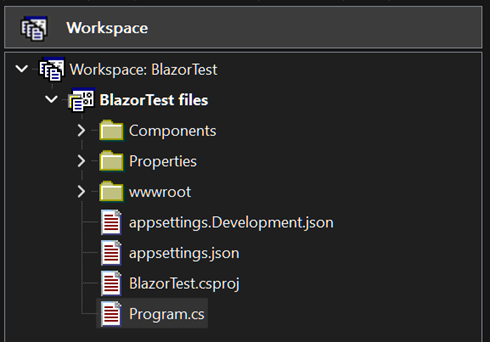
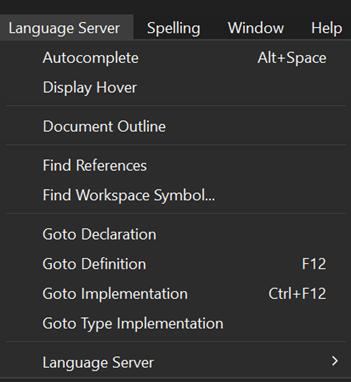
The Language Server, Autocomplete menu can be used to fire of the autocomplete as shown below:
NOTE: As that menu indicates, the Alt+Space keyboard shortcut can also be used to activate the autocomplete.
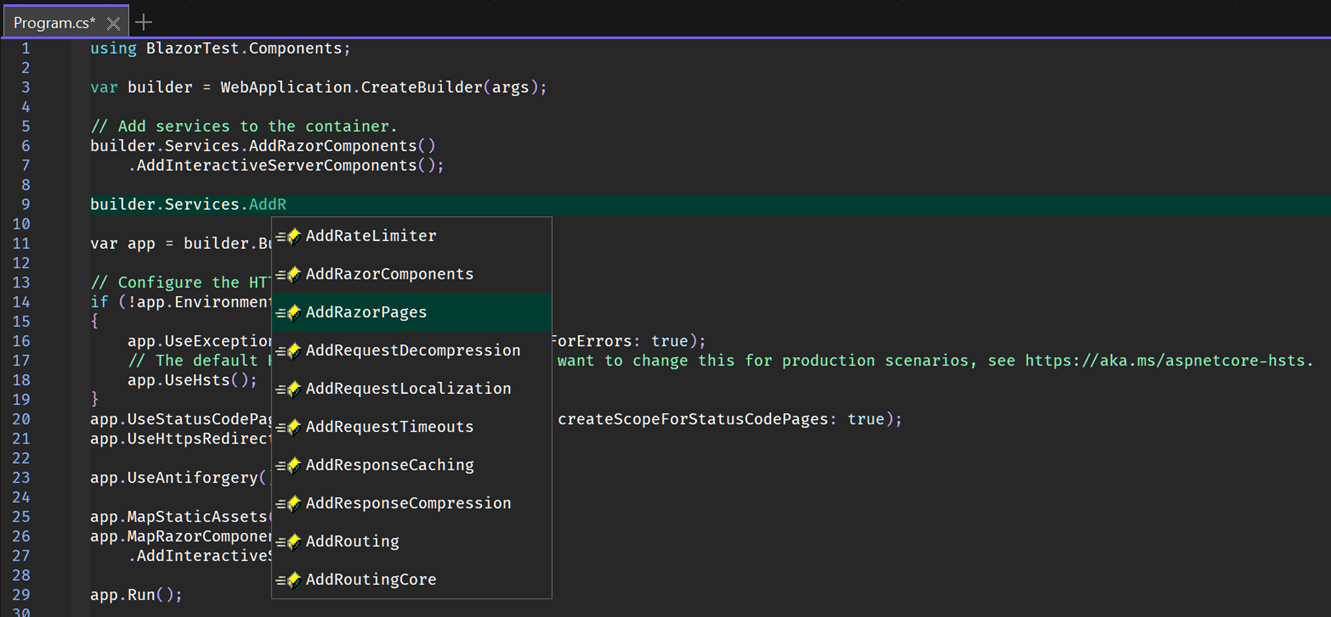
Open the Program.cs file and use those menu/keyboard options to fire off an autocomplete request as shown below:
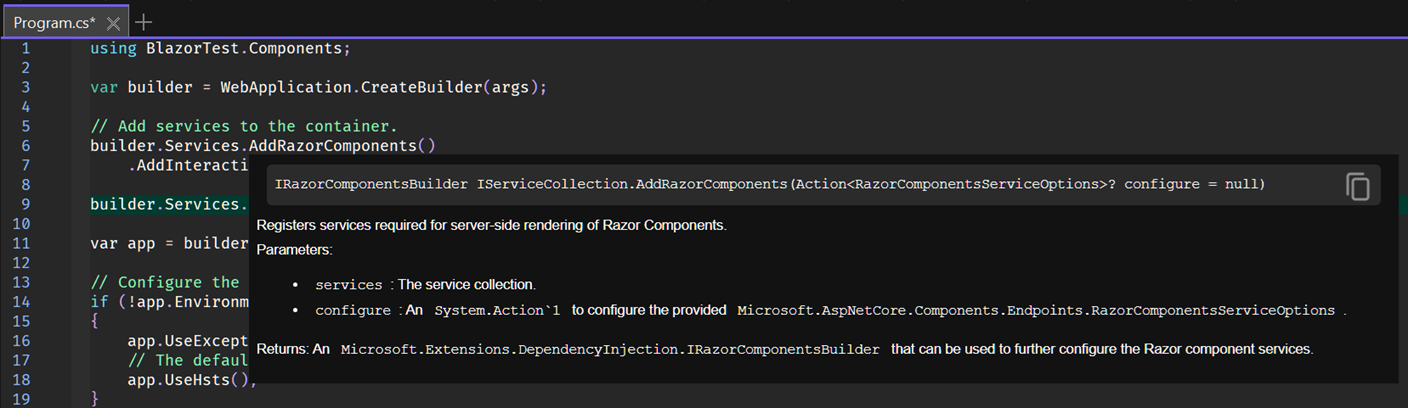
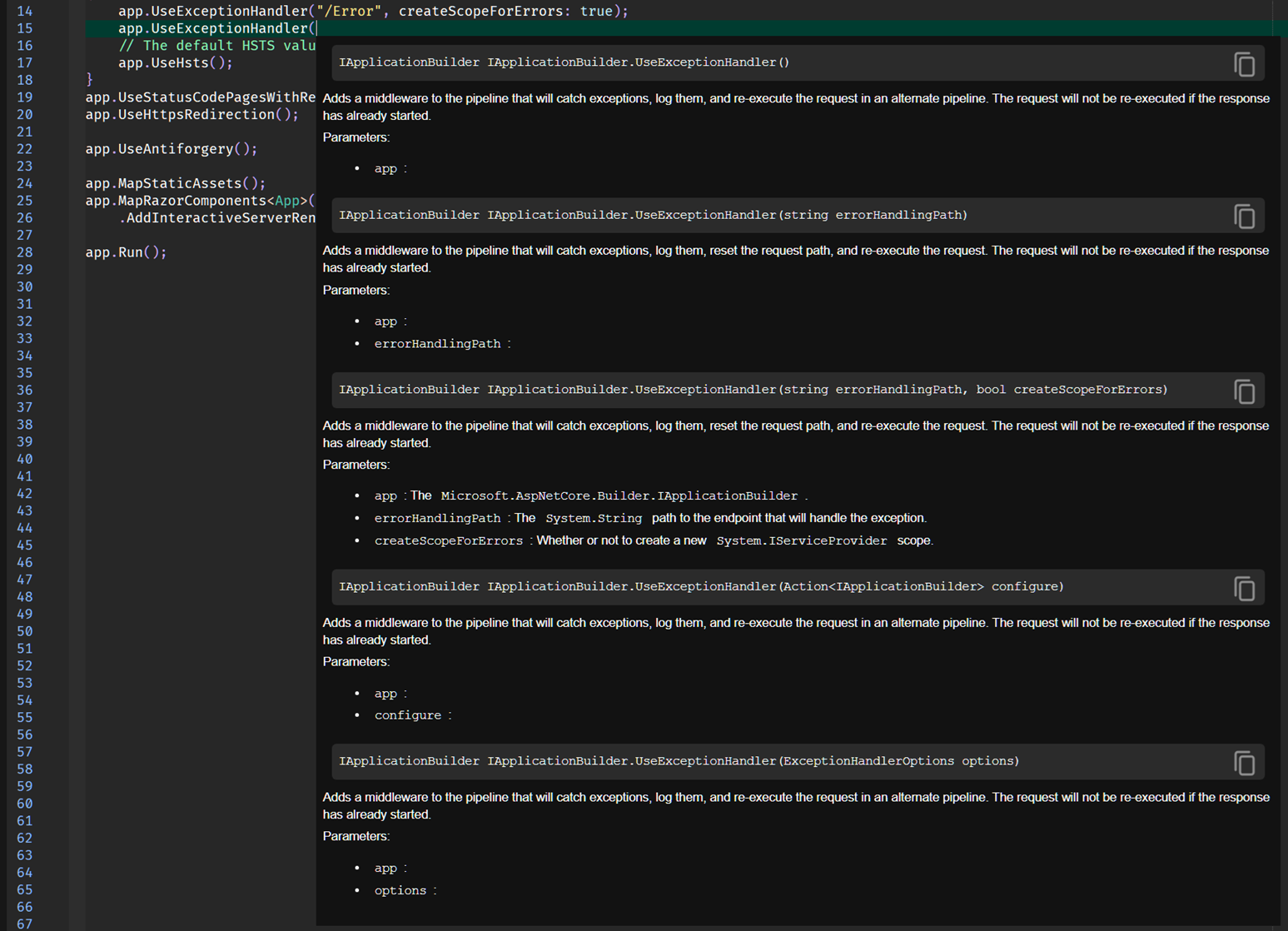
In addition to code completion, code navigation, function signatures, documentation hover is also available.
Here is an example of the documentation hover feature:
Here is an example of the function signature feature: